
You can choose which notifications people receive from Buildern, for your own team and for the sub/vendors and clients you work with. Settings are grouped by module, so you can turn whole areas on or off without managing every single email.
How notification settings work
There are two levels of settings:
- Company settings are the defaults for everyone. You set them separately for Users, Sub/Vendors and Clients.
- Individual settings apply to one person (one user, one sub/vendor or one client) and override the company defaults.
If nothing is set for a person individually, Buildern uses the company settings.
Who can receive which channel:
| Recipient | Push (mobile) | In-app | |
| Users (your team) | ✓ | ✓ | ✓ |
| Sub/Vendors | ✓ | – | – |
| Clients | ✓ | – | – |
What you can control
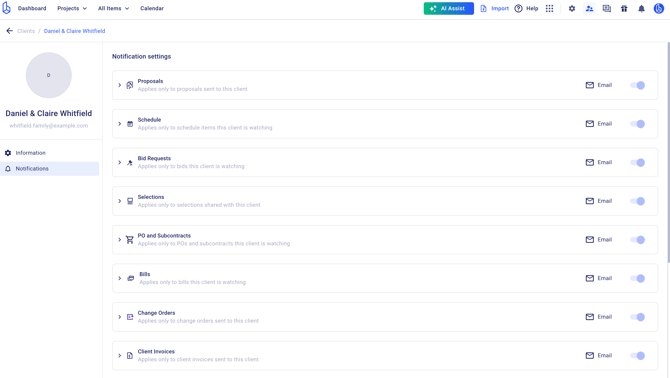
Notifications are organized by module:
- Purchase Orders / Subcontracts
- Bills
- Client Invoices
- Proposals
- Change Orders / Variations
- Bid Requests
- RFIs
- Submittals
- Schedule
- Daily Logs / Site Diaries
- To-Dos
- Selections
- Timesheets
Within each module, notifications are grouped by type. You can turn off a whole module, or just a group within it.
For example, Purchase Orders have these groups:
- Sent to me: a PO or subcontract is sent or resent (for sub/vendors).
- Approval workflow: a PO is sent for approval, approved or rejected.
- Confirmation: a PO is confirmed or released.
- Comments: new comments and email replies on the PO. You choose how many comment notifications to get: all comments, only comments where you’re mentioned, or none.
Other modules use similar groups, such as status changes, approvals, comments and reminders.
Reminders have their own setting in each module where Buildern sends them (for example bills, client invoices, RFIs, submittals, schedule and to-dos), so you can keep a module’s updates on but turn its reminders off.
Comments have their own dropdown in each module, so you choose how much you hear about them:
- All: get notified about every new comment and email reply.
- Mentioned only: get notified only when someone @mentions you.
- None: don’t get comment notifications for that module.
There are also a few general notifications:
- Payments received: choose who is notified when a client pays an invoice online.
- Invited user joined: get notified when someone you invited activates their account.
- Added to a project: turn on or off the email users and clients get when they’re added to a project.
- Failed emailed bill imports: get notified when a bill sent to your Buildern bill email couldn’t be imported, so it doesn’t get missed.
How to set company defaults
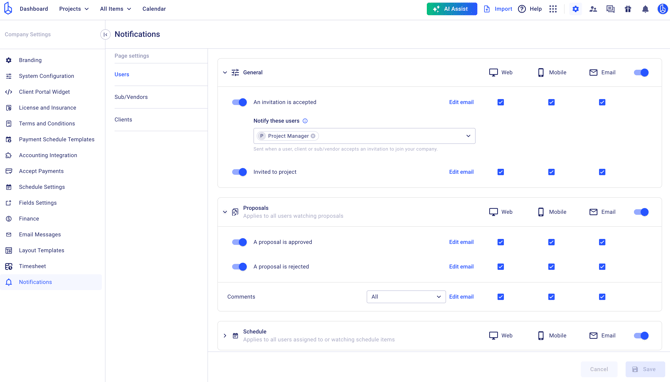
- Go to Company Settings → Notifications.
- Choose Users, Sub/Vendors or Clients.
- For each module, turn the whole section or individual groups on or off. For users, choose the channels too: email, push or in-app.
- Your changes save automatically and apply to everyone who doesn’t have individual settings.
How to change settings for one person
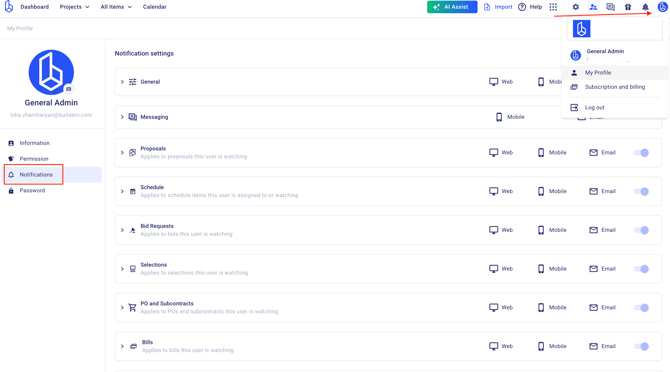
Your own settings (users):
- Open your Profile → Notifications.
- Change the modules, groups and channels you want. These override the company defaults for you only.
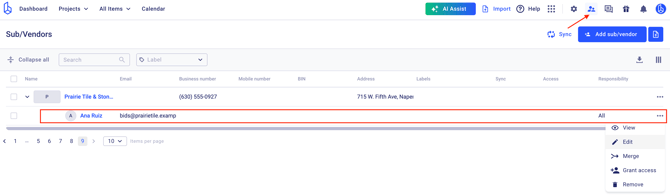
A sub/vendor:
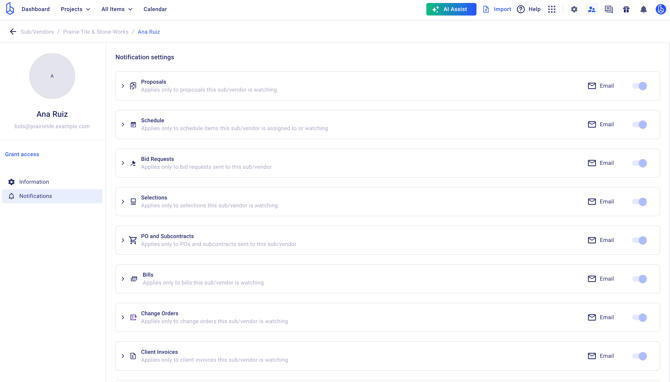
- Open the sub/vendor and go to the Contact’s Notifications tab.
- By default it’s set to Use company settings. Switch to custom settings to change what this sub/vendor receives.
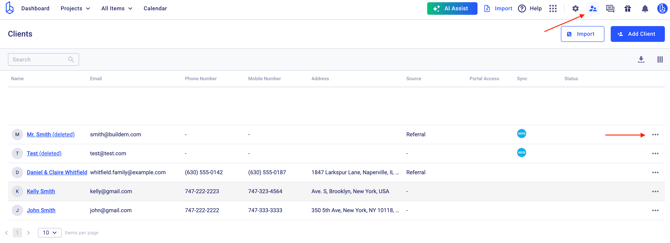
A client:
- Open the client’s profile and go to their notification settings.
- Switch from the company defaults to custom settings and make your changes.
Good to know
- Sub/vendors with portal access always follow the sub/vendor notification settings, not user settings. They can’t change these themselves. Someone on your team with permission to edit sub/vendors can.
- License and insurance expiry notifications (sent 30 days before expiry) are set separately in your company settings, where you choose who receives them.
- Clock-in and clock-out push notifications are controlled by your GPS and timesheet settings, not here.
- Turning a notification off doesn’t affect anything you send manually. For example, when you click Send on a PO, the PO email still goes out.